
How To Invite Your Teammates
Quick summary: Invite teammates by opening the Team page from your profile, clicking Add members, choosing a permission level, entering their email addresses, and sending the invite. They’ll get an email from support@dealnow.com with the subject line “You are invited to join [Your Company Name] on DealNow”.
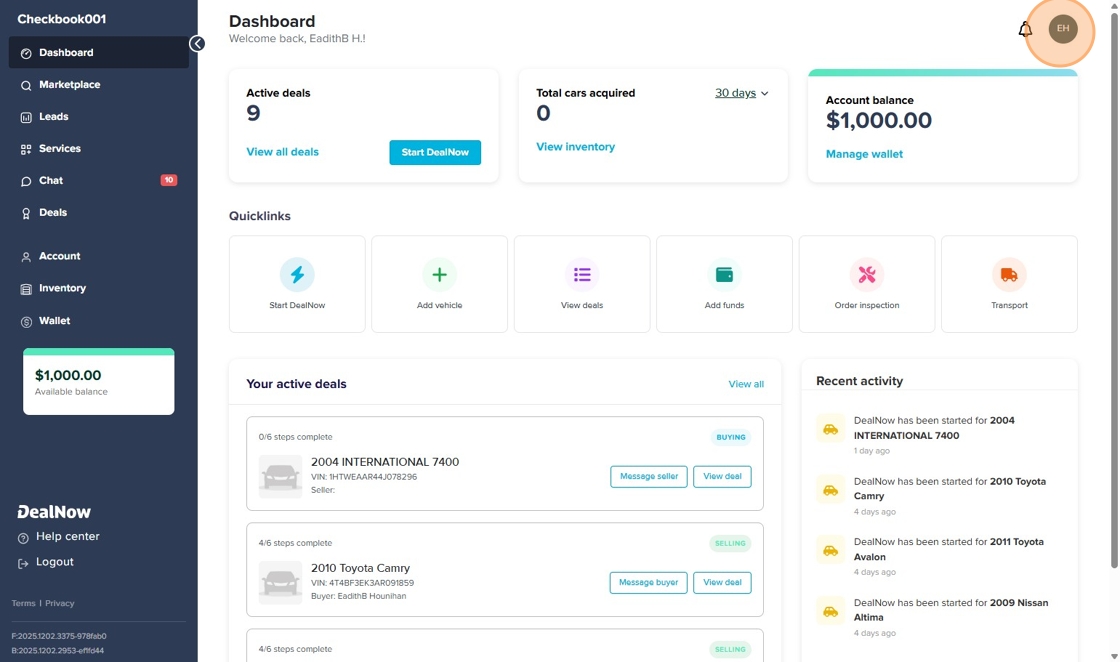
1. From the Dashboard, click your profile icon in the top-right corner.
2. In the left menu, select Team.
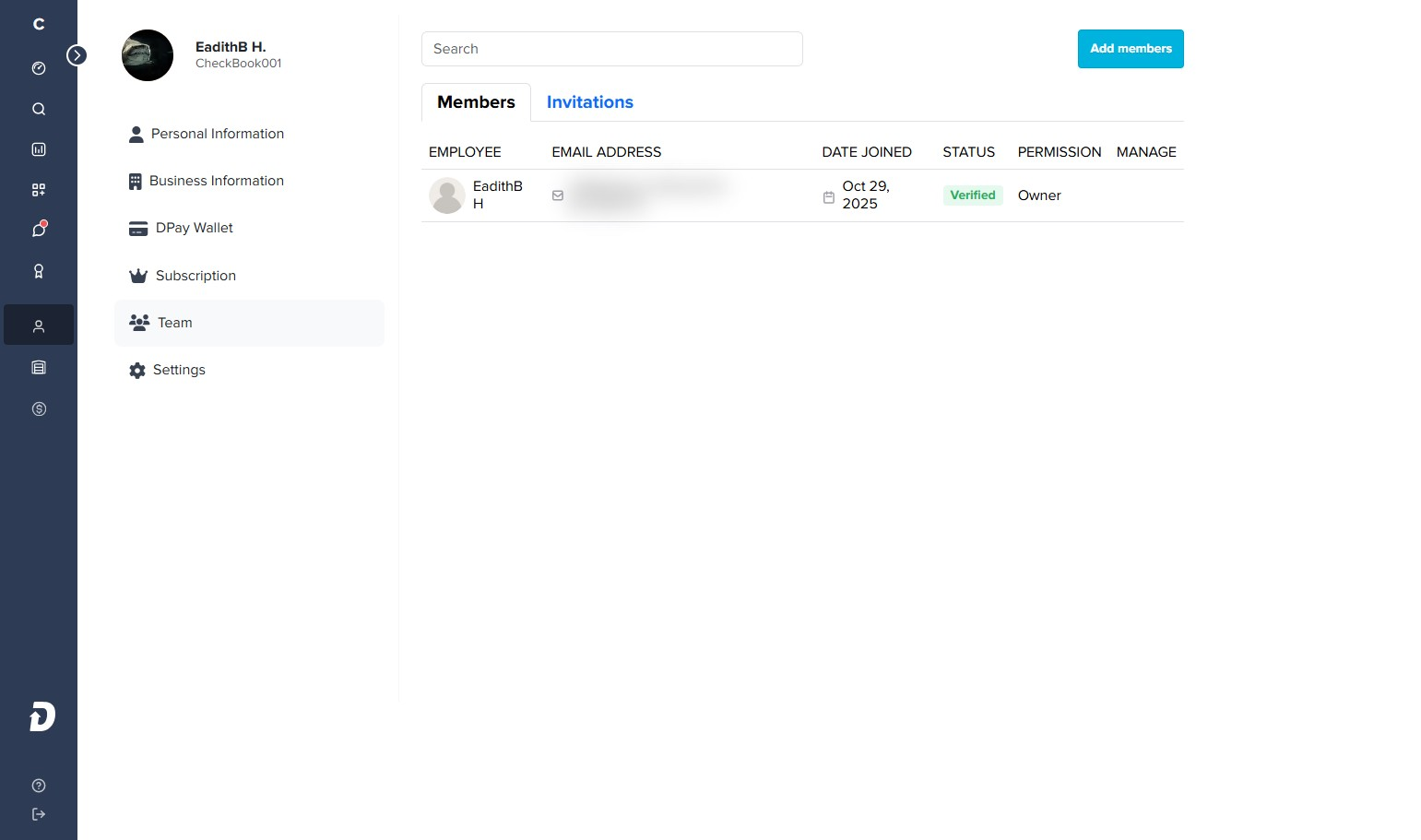
- On the Members tab, click Add members in the top-right corner.

4. In the Add members modal:
- Under Choose a permission, select the permission level you want to assign.
- Under Add member’s email to invite, enter the email addresses of all teammates who should have this same permission level.

5. Click Send invite.
Each teammate you added will receive an email from support@dealnow.com with the subject:
“You are invited to join [Your Company Name] on DealNow”.