
How To Change And Add Credit Cards (or default to Dpay Wallet)
Quick Summary: Dealers can add a new card and set it as the default payment method (or set the Dpay Wallet) at any time from the Subscription tab under Account. You can manage both your Subscription payment and your Transaction + Service fee payment method from this page.
Where to Find Payment Settings
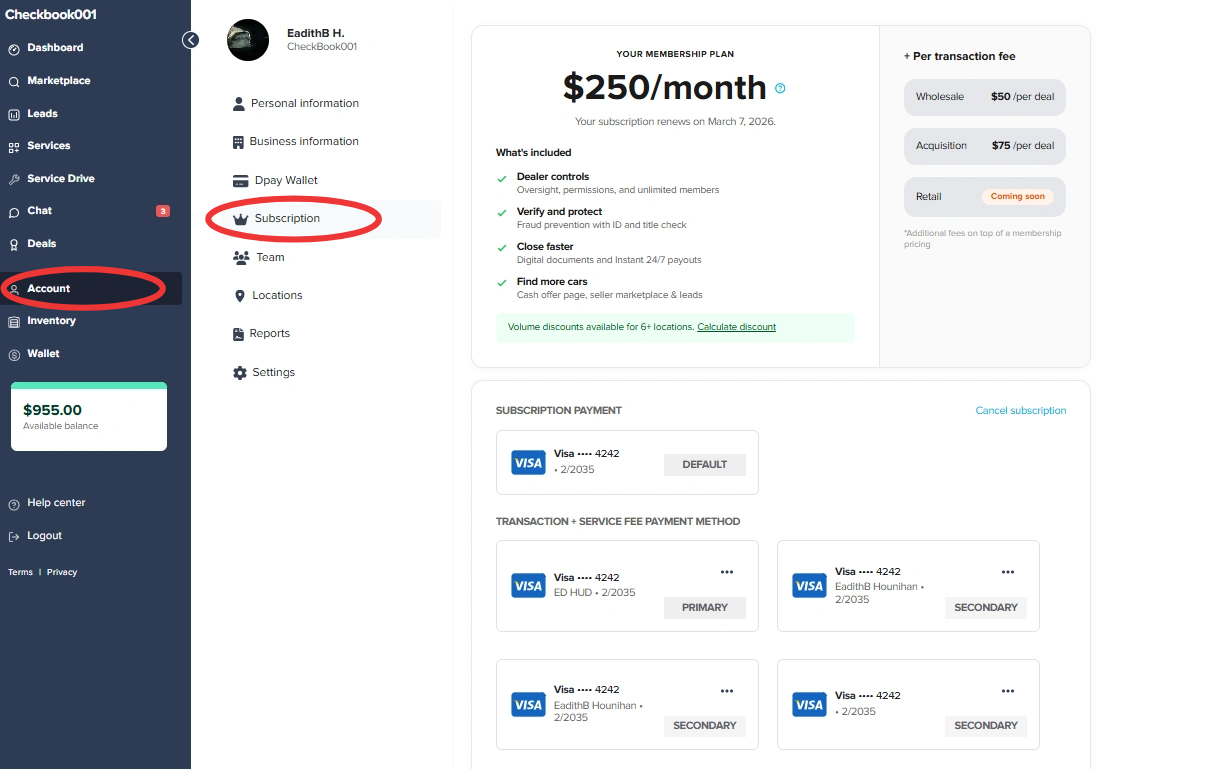
- From the left navigation menu, click Account.
- Select Subscription.
On this page, you’ll see:
- Your Membership Plan
- Subscription Payment
- Transaction + Service Fee Payment Method
Add a New Payment Method
- Scroll to the Subscription Payment or Transaction + Service Fee Payment Method section.
- Click Add payment method.
- Enter your card details.
- Click Save.
Your new card will now appear in your list of saved payment methods.

Change Your Subscription Payment Method
To update the card used for your monthly subscription:
- Under Subscription Payment, locate the card you want to use.
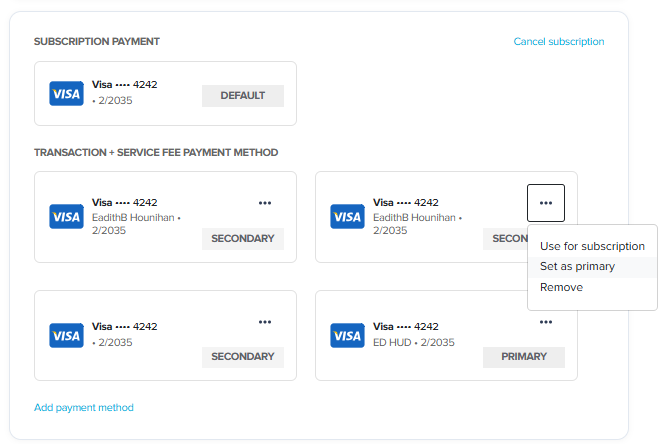
- Click the ••• (three dots) on that card (Or Dpay wallet).
- Select Set as default.
The card will now display as DEFAULT and will be used for future subscription charges.
Change Your Transaction + Service Fee Payment Method
To update the card used for per-deal transaction fees:
- Under Transaction + Service Fee Payment Method, locate the card you want to use.
- Click the ••• (three dots) on that card.
- Select Set as primary.
The selected card will show as PRIMARY and will be used for future transaction and service fees.
You may also keep a Secondary card on file as a backup.
Things to Know
- You can store multiple cards on file.
- Only one card can be Default (Subscription) at a time.
- Only one card can be Primary (Transaction Fees) at a time.
- Changes apply to future charges only.
If you run into any issues updating your payment method, contact Support through the Help Center.