
How to add a co-seller
Quick Summary: This guide walks you through how to add a co-seller to your DealNow deal, send their signing invitation, and understand the identity verification and signing steps they will complete. You’ll enter the co-seller’s name exactly as it appears on the title, send their invite from the Documents section, and track their progress as they verify their identity and sign all required documents.
Trouble Shooting Co-seller Workflow
1. Click the "+ Add a co-signer" hyperlink below the sellers name

Tip: The dealer or the seller can add and/or edit the co-seller information prior to signing to make sure all information is correct.
2. Add the Co-sellers name exactly how it reads on the title or lien paperwork and click the "Add co-signer" button

3. Confirm that the name matches the title or loan records on the next modal and click "Yes, name matches"

4. The Co-seller will be listed below the seller in the "Parties" Step one of the deal once added. You will be able to invite the co-seller once both parties have confirmed steps 1-3 of the deal in the documents step below

5. Complete the Offer and Title step of the deal with the seller. The steps are complete once you see the blue check mark on the top left of the section

6. The next step "Documents" is where you will send the invitation to the co-seller. Confirm the name and email are correct and then click "send invitation"

7. Once the invitation is sent the button will change to a green invitation sent bubble with the option to send again, if the co-seller needs it sent again.

8. The co-seller will receive an email that looks like this with a "Sign documents" button that takes them to the signing experience. You can share this help article with them for a step-by-step walkthrough of what they’ll see (similar to the next 9 steps here): What to Expect as the Co-Seller
Tip: The co-seller will be asked to verify their drivers license so you can instruct them to have it ready. The email will also be branded to your own dealership name and logo.

9. The first screen will walk the co-seller through the process. They will click "Start verification"

10. Enter phone number in text field

11. Then verify their name, birthdate, and driver license, and selfie check

12. Click "finish" once the identity verification completes successfully

13. Any documents that require their signature will have a "review and sign" button to add their signature to the document

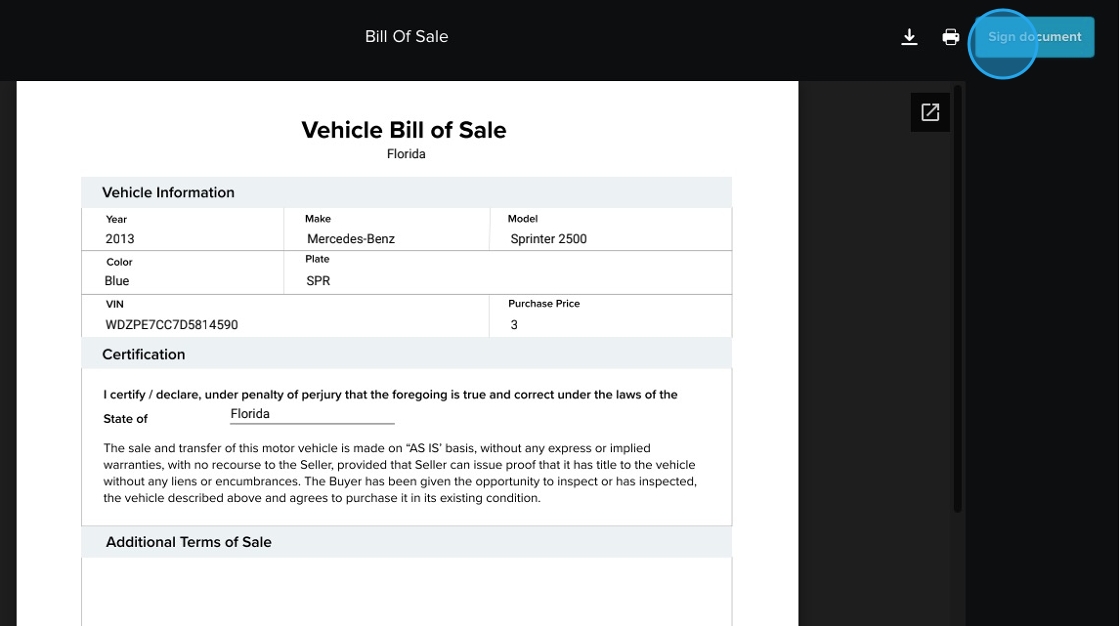
14. They will open the doc click "sign document" on the top right
15. Draw their signature and click sign

16. Click "Finished"

17. Complete this process until all three parties have added the required signatures. Once all signatures are present the Documents section will show a "Completed" green bubble. You can download all documents or view each one individually.
